
Introduction
The new generation Virtual Terminal offers the possibility to safely process mail and telephone orders (MOTO) and utilise added value features while managing your transactions.
The Virtual Terminal is where you process payment (debit and credit) transactions via the Internet by turning any personal computer, tablet or smart phone into a Point of Sale (POS) terminal. By means, it can used directly through your Devices browser without any implementation.
The Virtual Terminal enables you to initiate sale, preauthorisation or completion transactions. Additionally, you can create a Payment URL (Pay by Link) which will allow your customers to make the payment at a later point.
Access
To access the Virtual Terminal 2.0 you can use the URL’s below:
| Environment | URL |
|---|---|
| CI (UAT) | <https://test-vt.natwestpayments.com/virtual-terminal/> |
| PRODUCTION | < https://vt.natwestpayments.com/virtual-terminal/> |
Login
First Time Login
Before you proceed with your first login into the Virtual Terminal 2.0, it is necessary to install a mobile authenticator application on your mobile device (for Android and iOS devices), what will be used for a multi-factor authentication purpose and one-time-password (OTP) generation during login process.
Recommended apps:
- Google Authenticator
- FreeOTP
Any other Time Based One Time Password (TOTP) application (mobile app or web browser) based compliant with the following security standard requirements can be used:
- Type: Time-based
- Algorithm: SHA512
- Algorithm: SHA512
- Digits: 6
- Interval: 30
Examples: Sophos Authenticator, IBM Verify (iOS), Aegis Authenticator (Android)
After you successfully installed authenticator app on your mobile device and obtained your VT account credentials, enter Virtual Terminal URL in your browser so that a login screen is displayed:
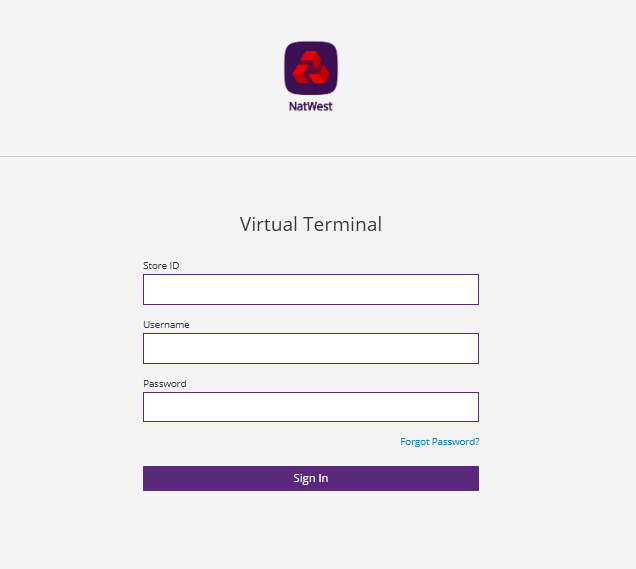
Type in your credentials and initial password provided by your support team and click on "Sign In" button.
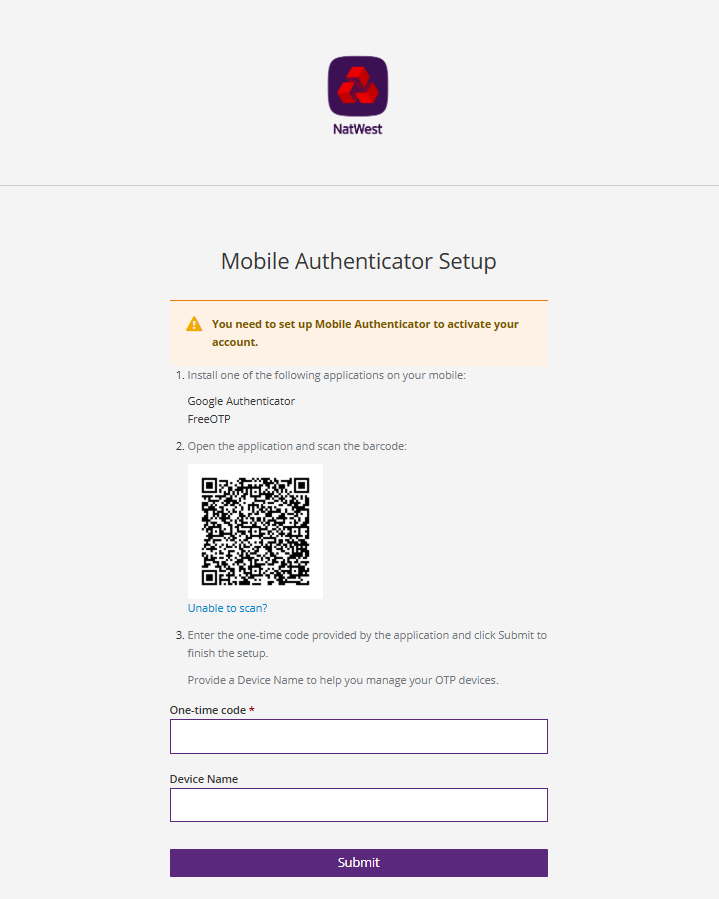
Mobile Authenticator Setup
Follow the instructions as on the picture below and enable your account for multi-factor authentication, then click on "Submit" button.
One Time Password (OTP)
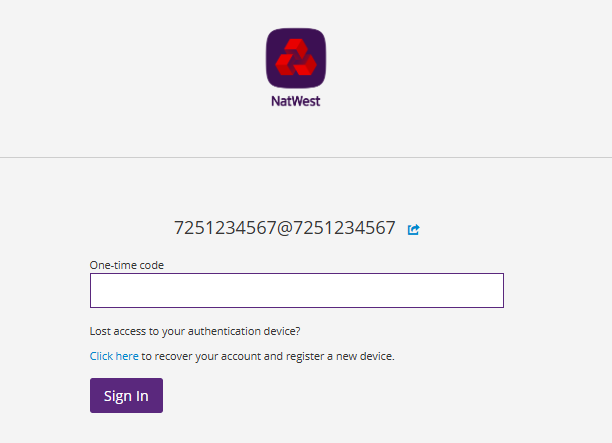
The setup screen will be shown only during the first login attempt, after your setup was completed successfully, you will be prompted to enter OTP generated through the authentication app on your mobile device.
Browser Authentication Setup
For cases where you are unable to use a mobile device for MFA, you may also use a browser-based TOTP generator provided the security standard outlined is met.
For cases where you are unable to use a mobile device for MFA, you may also use a browser-based TOTP generator provided the security standard outlined is met.
Examples include:
- 2FA Authenticator (authenticator.sh) – browser extension available via Google Chrome and Microsoft Edge web browsers
- 2FA Guard - browser extension available via Google Chrome and Microsoft Edge web browsers
- Bitwarden Password Manager integrated authenticator – available through supported browser extensions and desktop applications – authenticator code generation requires paid subscription.
NatWest Payments does not recommend, endorse, provide, or support any specific browser-based solution. You are responsible for selecting and validating an authenticator that is appropriate for your own security, compliance, and operational requirements.
Please ensure, that the setup matches matches the following requirements:
Type: Time-based
Algorithm: SHA512
Digits: 6
Interval: 30
You can initiate MFA registration with your chosen browser-based authenticator by:
- Saving a version of the QR code on your computer and upload the QR code into your chosen application (following the steps provided by your chosen application)
- Click the ‘Unable to scan?’ link and you will be provided with the key which can be copied into the browser-based OTP generator. Note: If you choose to use a browser only authenticator (not a browser-based add on / extension), save the key for future use as you will be prompted to enter each time to generate a TOTP code.
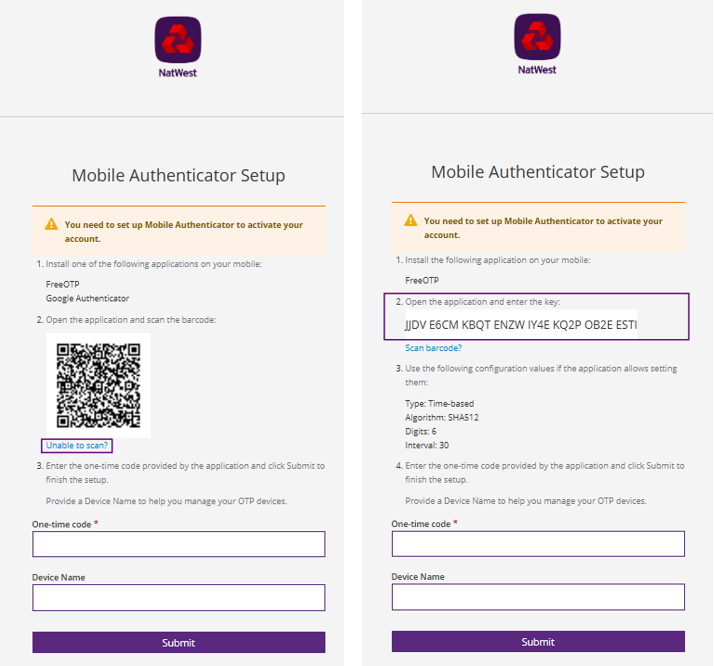
After you’ve generated your OTP from your chosen application, navigate to your Virtual Terminal login screen (first or repeated login) and paste the generated code within the 30 seconds timeframe
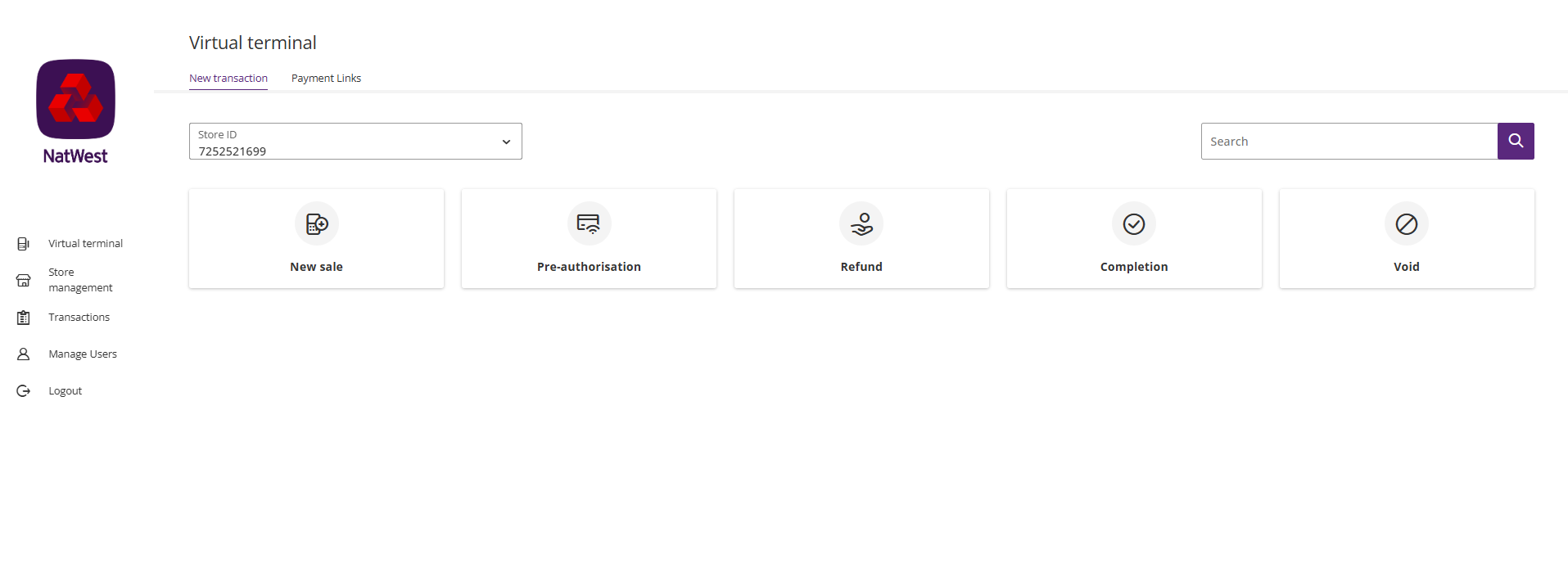
After your login was successful, you will be presented with the main screen with menu:
Payment methods
- Cards (credit + debit)
- Card / Credentials on file (CoF)
- Payment Link
Languages
- English
- German
Devices and Web browsers
| Device | OS | Browser |
|---|---|---|
| Desktop | Windows, iOS | Chrome, Safari, Edge, Firefox, Opera |
| Tablet | Windows, iOS, Android | Chrome, Safari, Android, Opera |
| Mobile | iOS, Android | Chrome, Safari |
Transaction types
The availability of the various transaction types depends in the permissions granted to an individual user.
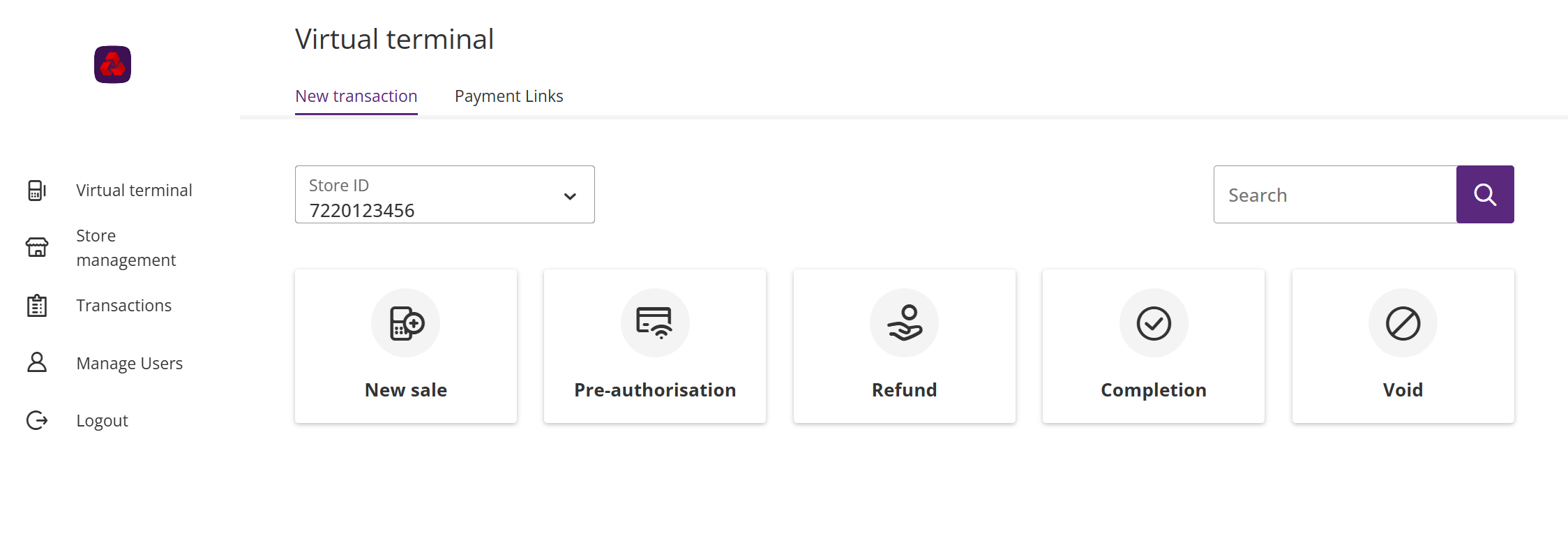
Where the required permissions are assigned to the user, these transaction types are available as 'tiles' from the main Virtual Terminal menu:
Updated 20 days ago