
Order Details
Overview
With the Manage Order User Interface you can easily:
- View all related transactions to a particular order in a single view
- See your customer's order balance, for example, are there funds available to refund your customer?
- Quickly see your customer's order information such as billing address, shipping address, etc.
- Initiate subsequent transactions like preauthorisation completions, voids or refunds
- Print receipts and send email notifications to your customer
View order details
There are many ways in which the details of an order can be viewed:
- Within the Virtual Terminal, the order details may be viewed after processing any transaction. This is independent of whether the transaction was successful or not.
- Virtual Terminal application also includes the ability to search for a particular order, view the details of an order and manage an order by using the top search bar.
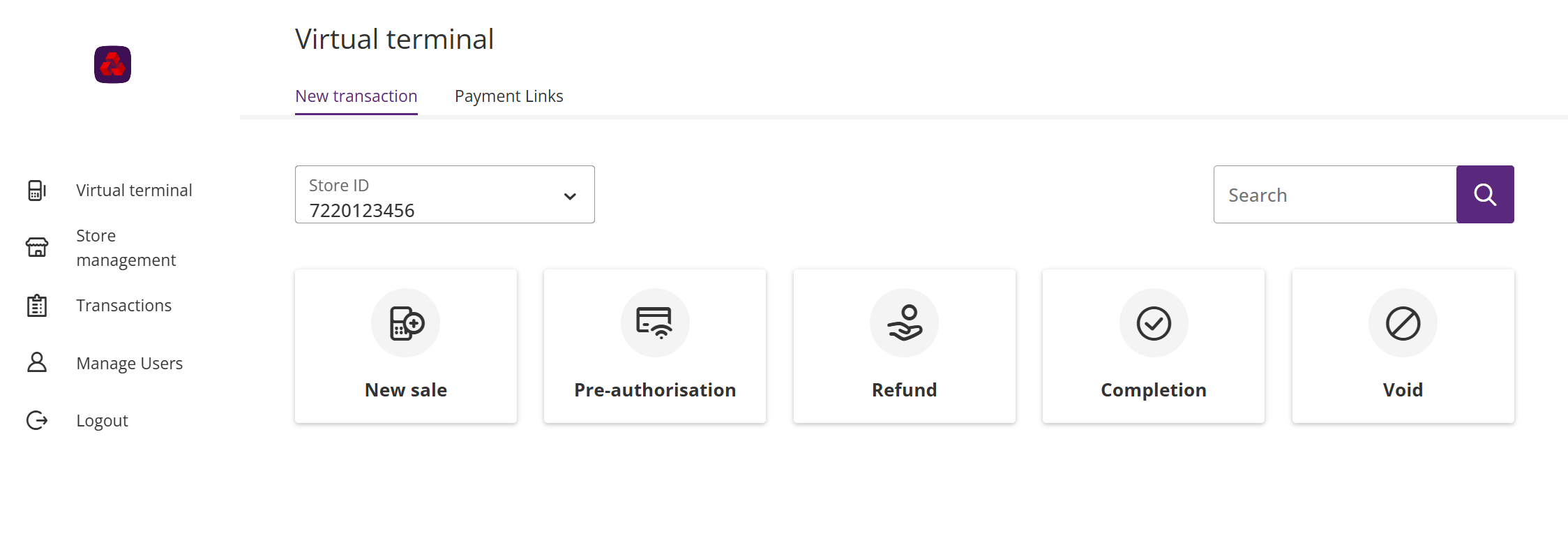
In addition, you can use the dedicated tab to access the transaction search.
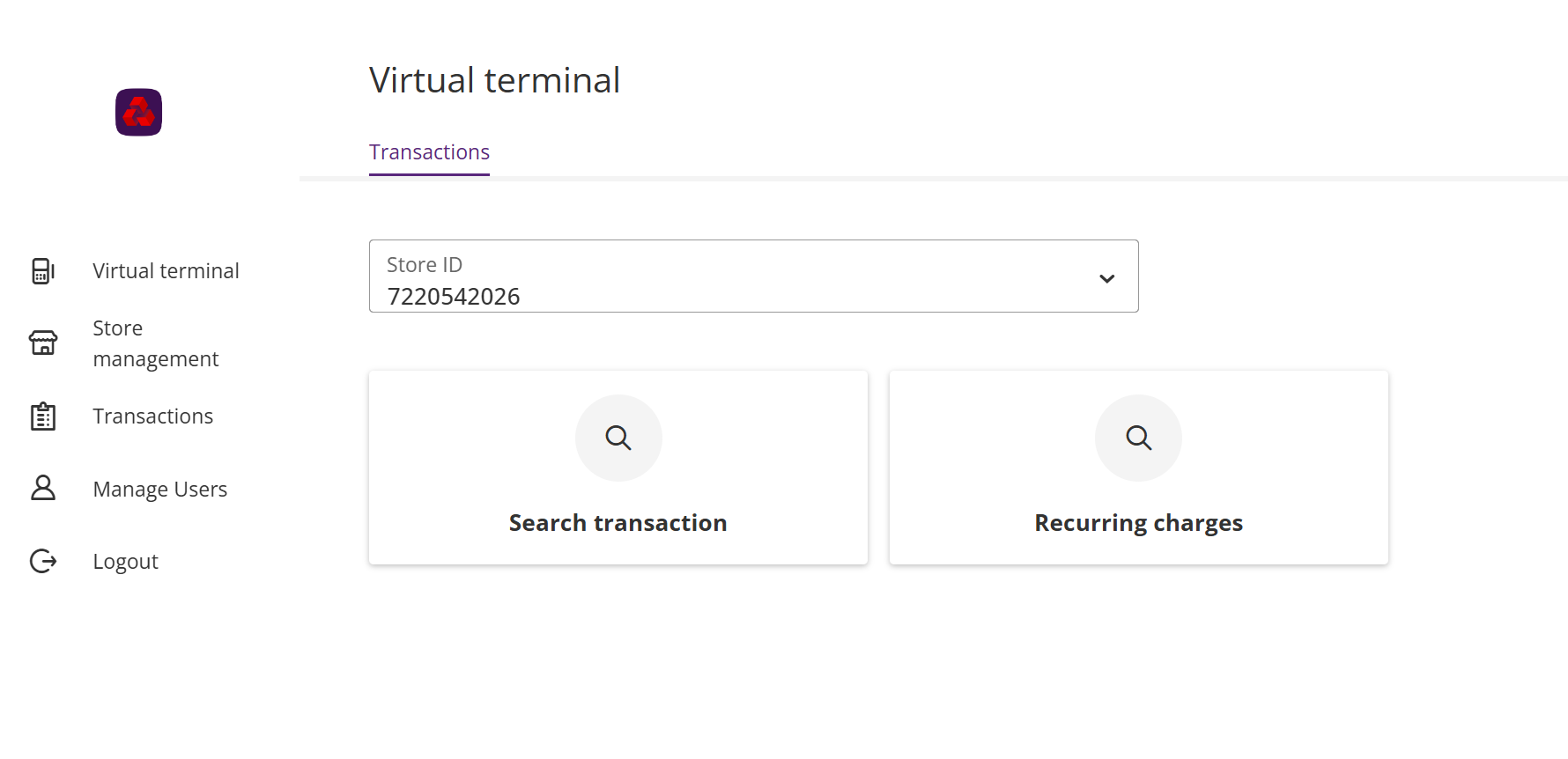
By clicking on the "Search transaction" tile, a new window will open where you can enter the details of the order you are trying to find. "From date" and "To date" is set to the current day per default.
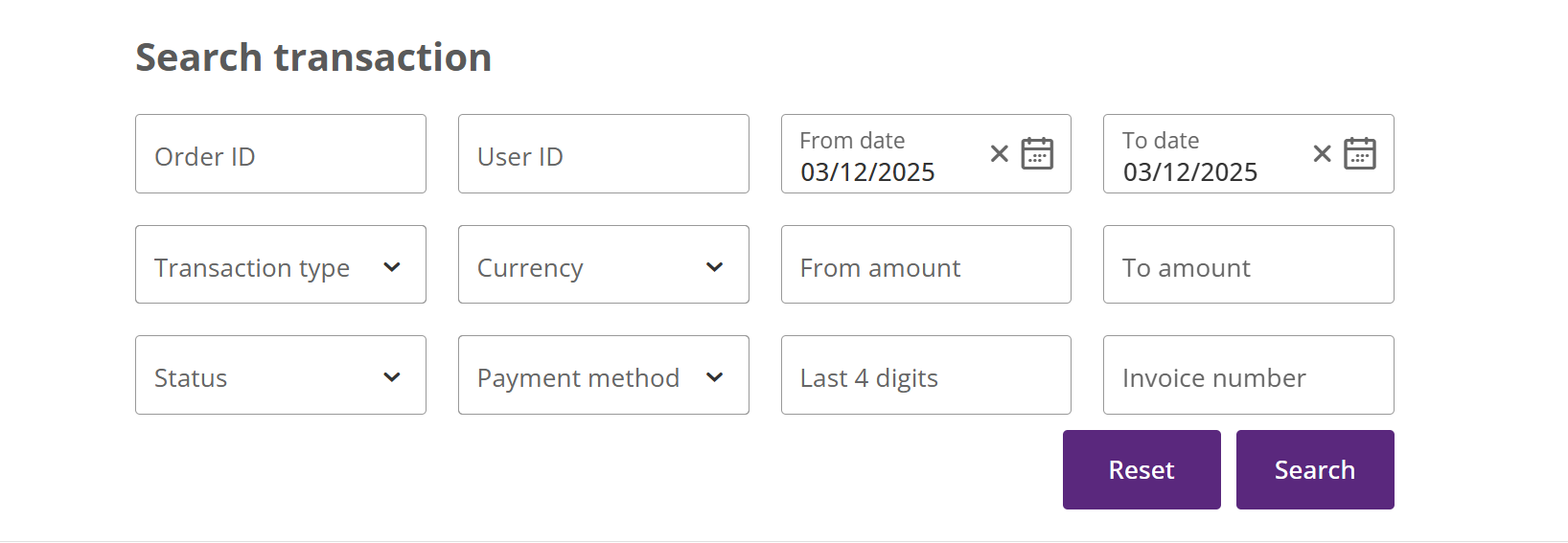
Once you have entered any criteria the list of matching orders will be presented in a list to you.
In below example the user has entered a range of amounts.
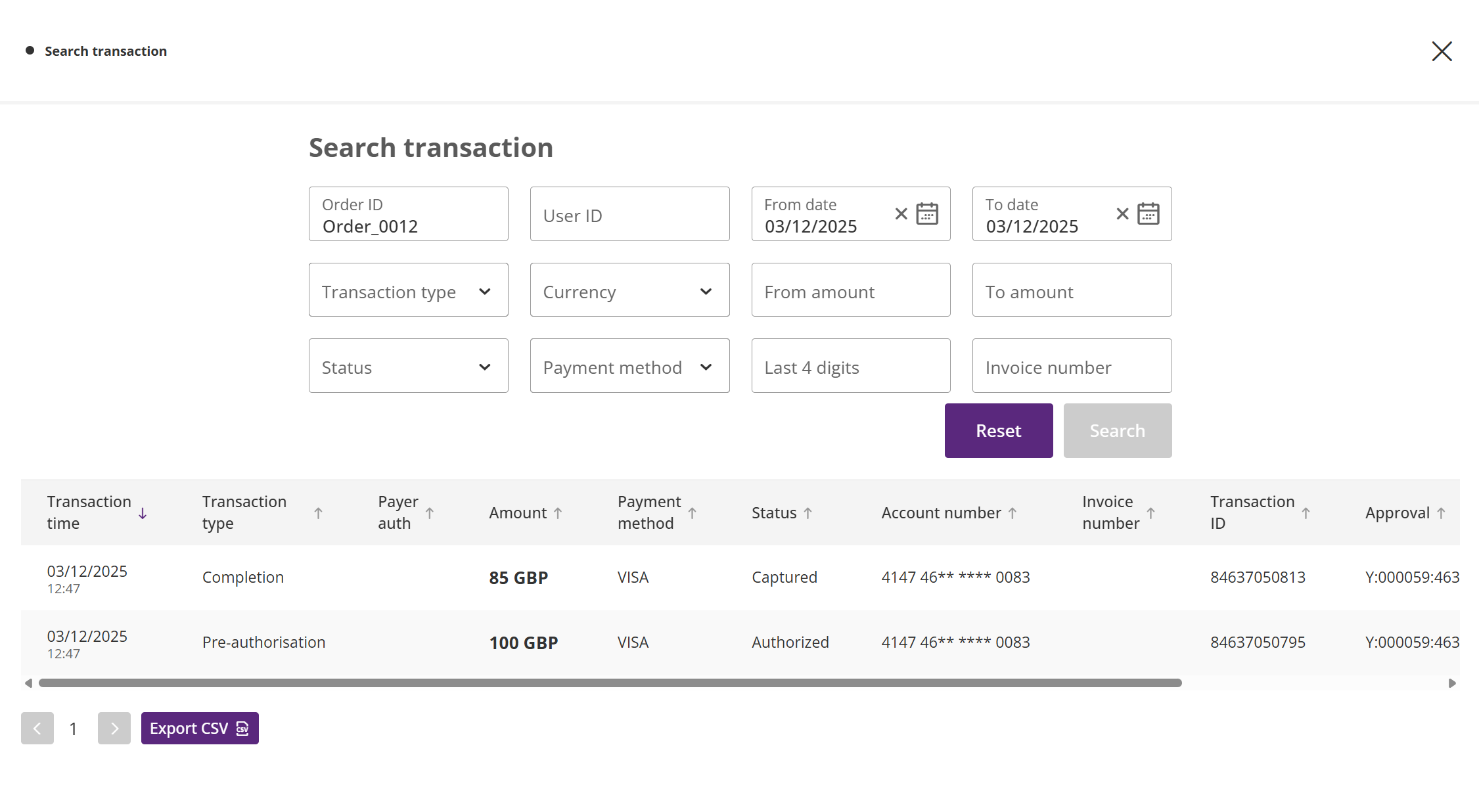
By clicking on the "Order ID" a window will be opened to show the detailed view of an order.
On the top of the screen the order details are presented.
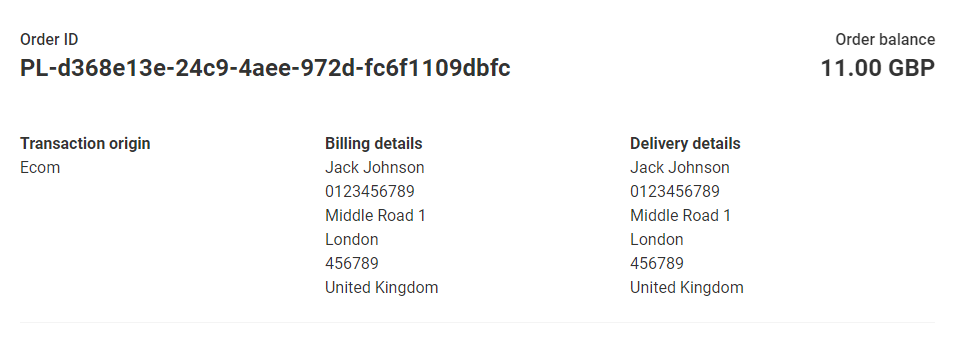
The fields presented to you, include:
| Field | Description |
|---|---|
| Order ID | This is the unique ID of the customer's order |
| Order balance | The current order balance, the balance is calculated as: Sum of all debit transactions (sales), and not including any amount that the customer received in cash (i.e. cashback) along with a retail purchase. reduced by refunds and reversed/cancelled transactions. |
| IP address | The IP address from the device where the order was initiated. |
| Transaction origin | This indicates whether the order was taken by telephone order, or mail order, a retail order, or via the merchants eCommerce webshop. |
| Billing details | If captured when the order was created, the customer's billing details are displayed which includes the customer Name, phone number, fax number, customer's email and address details. Clicking on the billing email address link will open your default email browser with the recipient billing email address populated. |
| Delivery details | If captured when the order was created, the delivery details are displayed which includes the delivery name, phone number, delivery email and delivery address details. Clicking on the delivery email address link will open your default email browser with the recipient delivery email address populated. |
Order with recurring charges or MCC 6012 addendum
For recurring payments, the order details will also display the payment schedule that was configured for this order.
Users with permissions to manage recurring payment schedules will be able to amend or cancel the schedule.
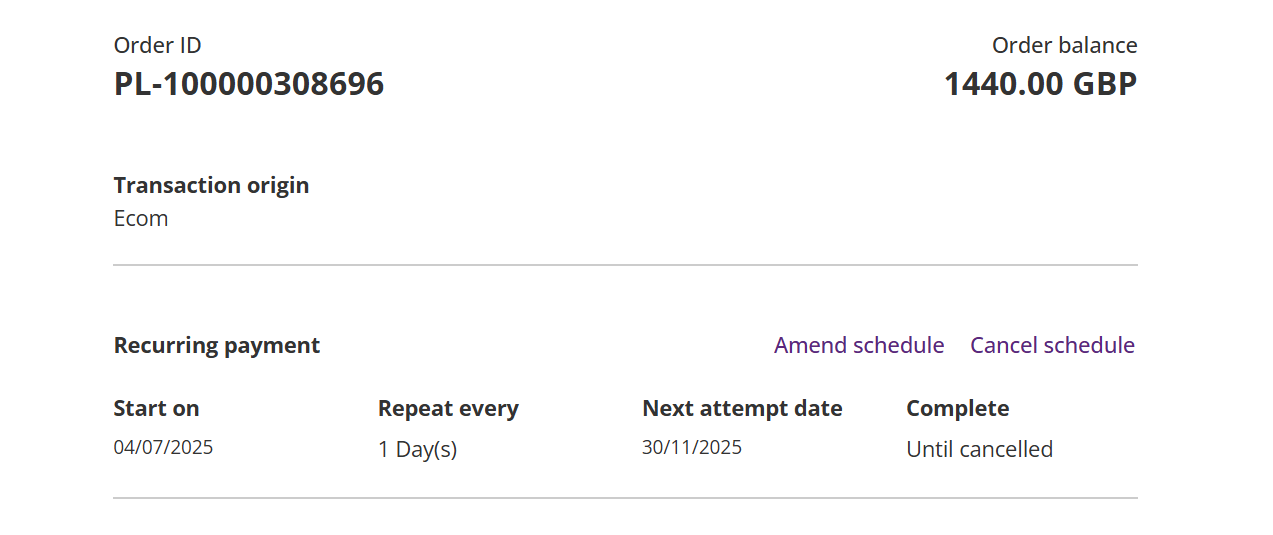
Order with MCC 6012 addendum will contain an additional block showing the data.
View Order Transaction History
Scrolling down in the Order Details shows the Order History section.
This section lists all transactions within the order, and the most recent transaction is presented at the top. This section is where you will see whether any transaction was approved or declined.
The transactions are displayed in summary form. Successful transactions are indicated with a green border, while those transactions that are declined/non-successful are highlighted with a red border.
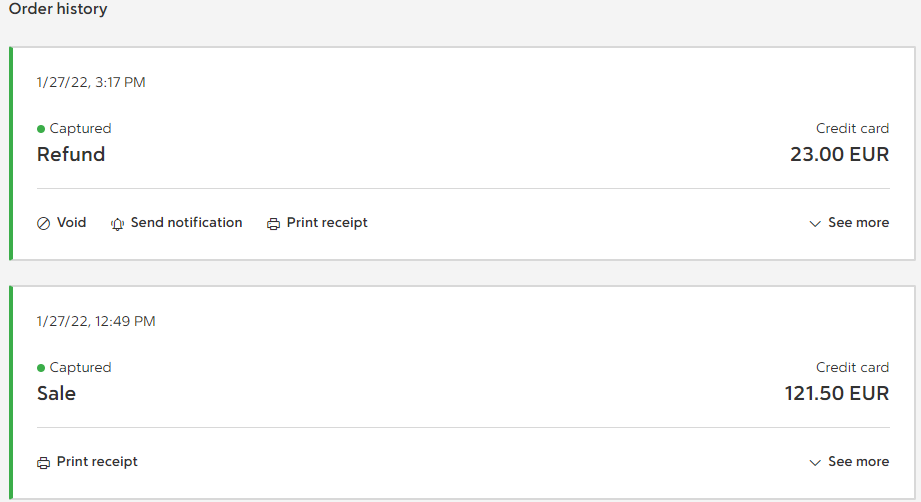
Transaction Detail - Payment by Card
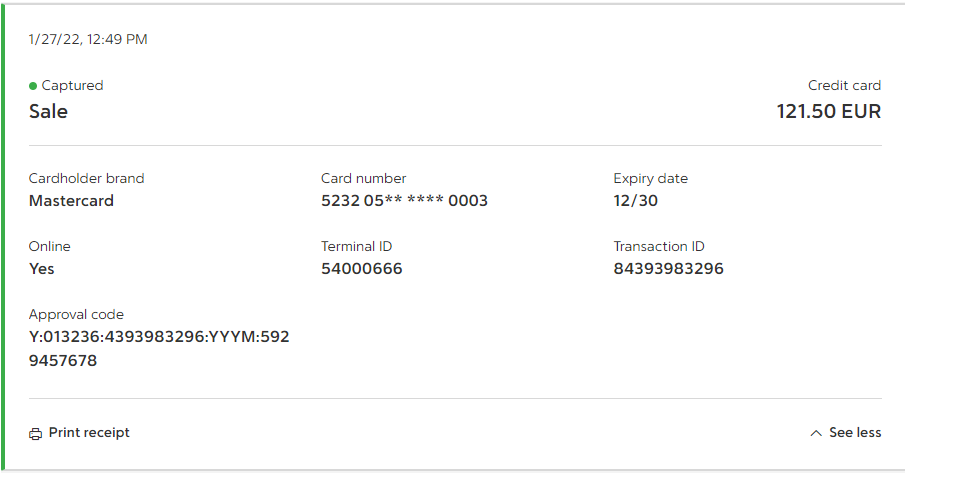
The fields presented to you, include:
| Field | Description |
|---|---|
| Cardholder brand | Examples, VISA, Mastercard, Amex etc. |
| Card number | First 6 and last 4 digits of card number. Remaining digits are masked. |
| Expiry date | Expiry month and year of the card. The format is MM/YY |
| Online | 'Yes' if this is an Online transaction, else it was processed offline |
| Terminal ID | Terminal identifier that was used during the processing of the transaction |
| Transaction ID | Unique identifier of the transaction |
| Approval Code | Transaction approval code built by the Gateway |
Transaction Detail - Payment Link
The following additional fields are displayed where a "Payment Link" has been generated for the customer.
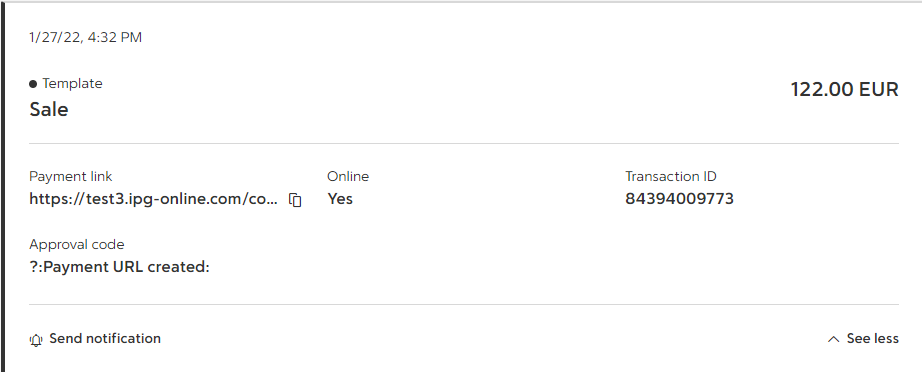
The fields presented to you, include:
| Field | Description |
|---|---|
| Payment link | Click the copy icon to the right of the payment link to copy the payment link to your clipboard |
| Online | 'Yes' if this is an Online transaction, else it was processed offline |
| Transaction ID | Unique identifier of the transaction |
| Approval Code | Transaction approval code built by the Gateway |
Updated 8 months ago