
Payment Methods
This page provides an overview of the various payment methods that are offered in Virtual Terminal 2.0.
Credit / Debit Card Payment
To process a one-off card payment to/from your customer, choose the "Credit/Debit card" tab from the payment options. You can do this for the following transaction types:
Sale
Preauthorisation
Credit
Follow the steps below to process a card payment for a new sale or preauthorisation.
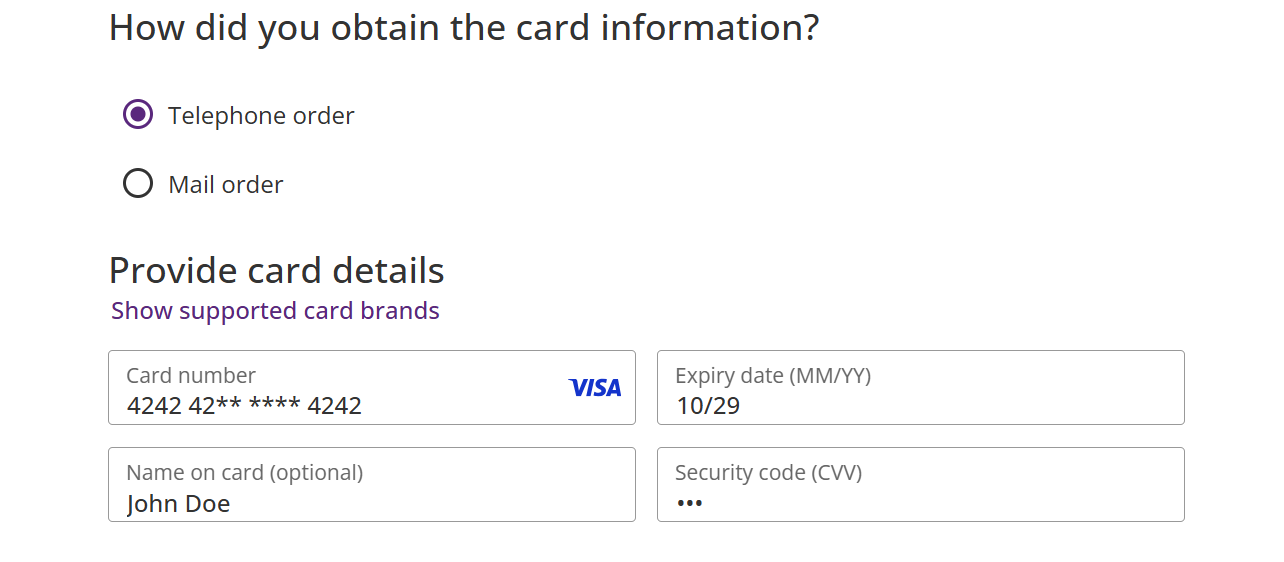
- Select "Telephone order" or "Mail order" to indicate how you obtained the customer's card details.
- Enter the card details such as Card number, Expiry date (MM/YY), Name on the card, Security code (CVV) in the respective fields.
- Choose the card type (Credit/ Debit) from the dropdown menu.
- There is an option to Save card details (Generate token). This option is only available if you have permission to save this customer's card details for future transactions.
- For a new "sale", or "credit", select "Pay" to process the payment.
To preauthorise your customer's card, select "Authorise" on the screen.
Select "Back" to go back to Order summary screen.
Additional Information
Select "Show supported card brands to view which cards are supported for your store.
Select "Show card info" to view additional information linked to your card, e.g. issuer country.If you are a UK merchant with a category code of 6012 and cards issued by Visa or MasterCard have been selected as the payment method, you are required to enter additional information about the primary recipient of funds.
Recurring Payments
Follow the steps below to initiate a recurring payment schedule.
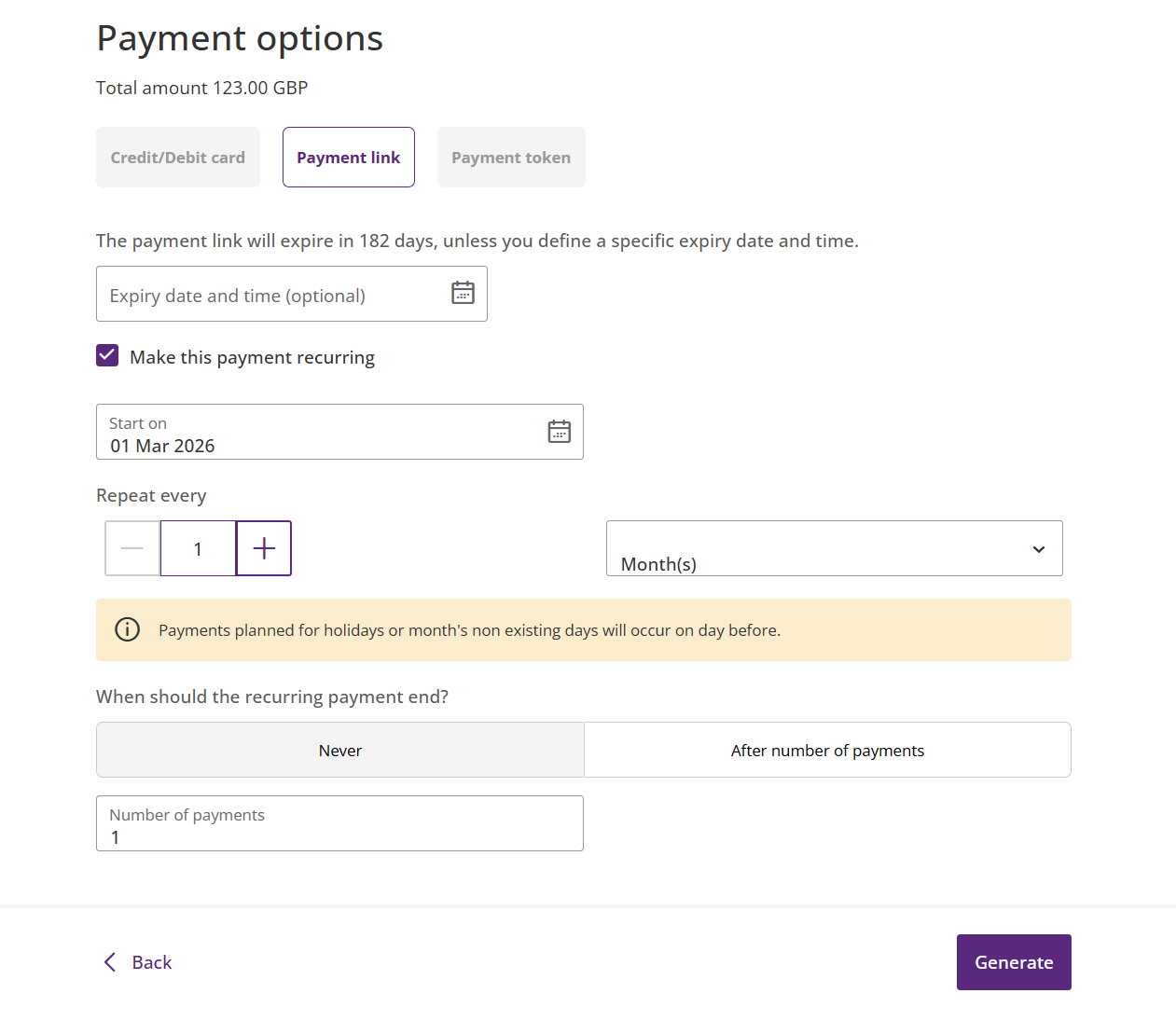
- Select the "Telephone order" or "Mail order" to indicate how you obtained the customer's card details.
- Enter the Card details such as Card number, Expiry date (MM/YY), Name on the card, Security code (CVV) in the respective fields.
- Choose the card type (Credit/ Debit) from the dropdown menu.
- There is an option to Save card details (Generate token). This option is only available to you if you have permission to save this customer's card details for future transactions.
- Select the checkbox "Make this payment recurring" to enable recurring schedule.
- Select the payment schedule start date by selecting the date from the "Start on" field.
- Enter the number of times you want to repeat the transaction. Select plus or minus sign to edit the number.
- Choose the period (Days, Weeks, Months, or Years) between the two payments from the drop-down menu.
Click the "After number of payments" tab and enter the number in the "Number of payments" field, after which recurring schedule ends.
For example, if you wish to charge the customer once a year, enter the number 1 and select "year" in the dropdown box.
To charge the customer twice a year (once every 6 months), you would enter the number 6 and select month in the dropdown box.
Otherwise if you want the recurring payment schedule to continue until further notice, you can select the "Never" tab. - Select "Pay" to continue payment. Select "Back "to go back to Order summary screen.
Additional Information
Select "Show supported card brands" to view which cards are supported for your store.
Select "Show card info" to view additional information linked to your card, e.g. issuer country.If you are a UK merchant with a category code of 6012 and cards issued by Visa or MasterCard have been selected as the payment method, you are required to enter additional information about the primary recipient of funds.
Payment with stored credentials (card on file)
Tokenisation is the process of turning a meaningful piece of data, such as a customer's credit/debit card, into a random string of characters called a "token" that has no meaningful value if breached. Tokens serve as reference to the original data, but cannot be used to guess the cardholder's information.
This provides security and protection of the cardholder's information as you will not know or have access to the cardholder's card details.
The tokenization system used by the Virtual Terminal is the Fiserv Gateway (IPG) tokenisation solution.
Cardholders' tokens are securely saved and maintained in the IPG data vault.
If you have the required permission to process a sale or preauthorisation using a customer's card on file, choose the "Payment token" tab from the payment options.
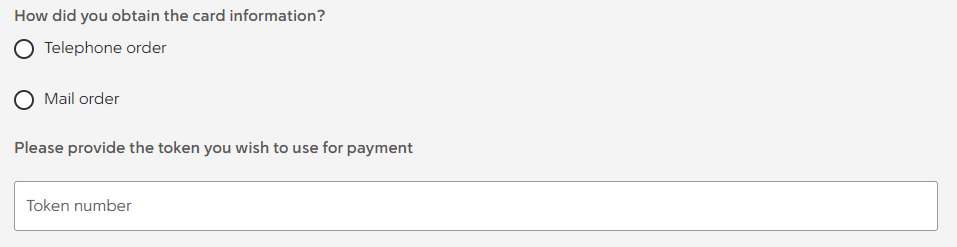
To process the payment, enter the token for your customer's card on file and click "Pay".
Updated 8 months ago